Running Windows software on an Android phone was once impossible. Today, mobile hardware is much more powerful, and new translation technologies make it possible to run many Windows applications on Android devices.
Many users want to access old work programs, use desktop utilities, or play classic PC games without carrying a laptop. Several Windows emulators, compatibility layers, and virtual machines now make this possible. This guide explains the best Windows emulators for Android, how they work, their limits, and how to choose the right option for a device.
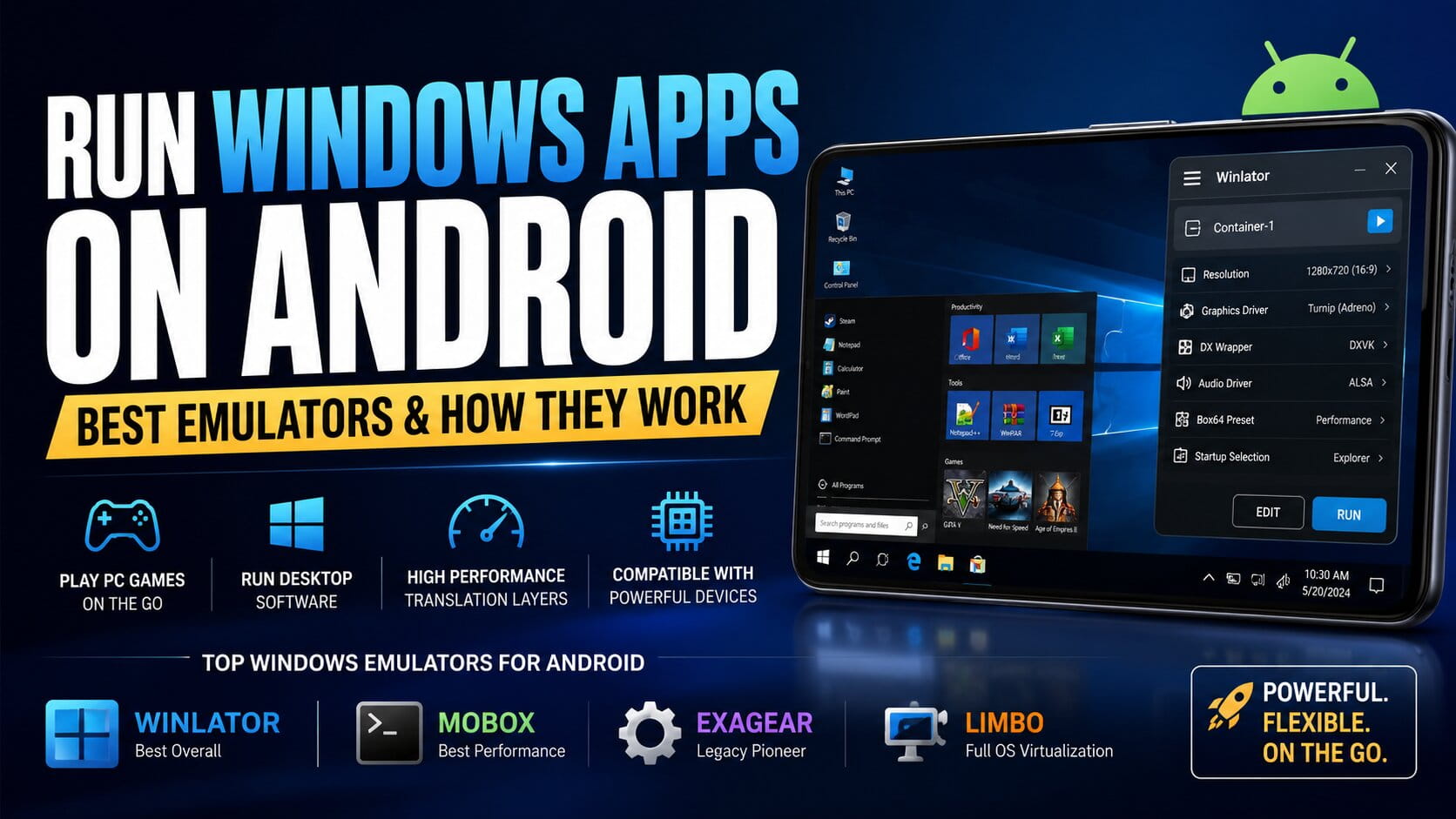
Understanding Windows Emulation on Android
Before installing any emulator, it helps to understand how the technology works.
Most Android devices use ARM processors. Traditional Windows programs are usually built for x86 or x64 processors made by Intel or AMD. Because these processor types are different, Windows software cannot run directly on Android.
A true emulator copies an entire computer system in software. This process uses a large amount of CPU power and memory. As a result, performance can become very slow.
Most modern Android solutions do not use full emulation. Instead, they use translation layers or compatibility layers. These tools translate Windows instructions into Android or Linux instructions in real time. Because of this method, applications often run much faster and use fewer system resources.
The Best Windows Emulators and Translation Layers
1. Winlator (Best Overall for Gaming and General Use)
Winlator is currently one of the most popular and beginner-friendly solutions for running Windows software on Android. It is open-source and continues to receive strong support from the community.
Winlator uses Wine (Wine Is Not an Emulator) to handle Windows system functions. It also uses Box86 and Box64 to translate x86 and x64 instructions into ARM instructions.
Graphics Performance
Winlator supports DXVK and Turnip drivers. These technologies help convert DirectX graphics into Vulkan graphics. As a result, the phone’s GPU can process many PC games much more efficiently.
User Interface
One reason for Winlator’s popularity is its simple Android interface. Users can create containers, adjust screen resolution, manage controls, and change performance settings without using command lines.
Best Use Cases
Winlator works well for:
- DirectX 9, 10, and 11 games
- Desktop utilities
- File management tools
- Text editing applications
- Lightweight photo editing software
For most users, Winlator Download for Android provides the best balance between performance, features, and ease of use.
2. Mobox (Best for Maximum Performance)
Mobox focuses mainly on gaming performance. It is designed for users who want the highest possible frame rates when running PC games on Android.
Instead of providing a large graphical interface, Mobox acts as a special setup system for Termux, Box64, and Wine.
Performance Advantage
Because Mobox removes much of the extra interface overhead, more system resources remain available for games. In many cases, demanding titles can achieve higher frame rates than they do in Winlator.
Learning Difficulty
The setup process is more difficult than Winlator. Users usually need to enter commands in Termux and manage settings through text-based menus.
Best Use Cases
Mobox is a strong choice for:
- Advanced users
- Performance-focused gamers
- Demanding PC games
- Users comfortable with terminal commands
3. ExaGear Windows Emulator (The Early Pioneer)
ExaGear was one of the first successful Windows emulation solutions for Android devices.
The original company behind ExaGear, Eltechs, stopped development years ago. However, many community developers continued working on modified versions of the software.
Community Modifications
Today, several custom ExaGear versions are available. Many include updated Wine builds, improved sound systems, and better input support.
Stability
Although newer solutions focus heavily on DirectX gaming, ExaGear still performs well with many older Windows applications.
Best Use Cases
ExaGear is often used for:
- Windows 98 software
- Windows XP software
- Classic strategy games
- Older office applications
- Legacy business tools
For older programs, ExaGear can still be a reliable option.
4. Limbo PC Emulator (Best for Full Windows Installation)
Limbo works very differently from Winlator, Mobox, and ExaGear.
Instead of translating instructions, Limbo creates a complete virtual computer using QEMU technology.
Full Hardware Emulation
Limbo can emulate an entire PC. Users can install full operating systems inside the emulator.
Examples include:
- Windows 95
- Windows 98
- Lightweight Windows XP installations
- Lightweight Windows 7 installations
This setup creates a complete Windows environment on an Android device.
Performance Limitations
Because Limbo emulates the entire computer, performance is much slower than translation-based solutions.
Modern games and heavy software usually perform poorly. Boot times are longer, and applications may respond slowly.
Best Use Cases
Limbo works best for:
- Educational testing
- Learning about older operating systems
- Running very specific legacy software
- Experimenting with desktop Windows on a phone
Side-by-Side Comparison
| Emulator / Layer | Core Technology | Main Purpose | Setup Difficulty | Recommended Hardware |
|---|---|---|---|---|
| Winlator | Wine + Box86/64 + DXVK | Gaming and general software | Moderate | Snapdragon devices with Adreno GPUs |
| Mobox | Termux + Box64 + Wine | High-performance gaming | High | High-end Snapdragon devices |
| ExaGear (Modified) | Custom Eltechs Core + Wine | Older games and legacy software | Moderate to High | Mid-range and high-end ARM devices |
| Limbo PC Emulator | QEMU Virtual Machine | Full Windows operating systems | High | Any ARM device, but performance is slow |
Hardware Limitations and Compatibility Requirements
Windows emulation performance depends heavily on the hardware inside the phone.
Processor Requirements
Qualcomm Snapdragon processors usually deliver the best results. Many developers optimize drivers and graphics tools specifically for Snapdragon devices and Adreno GPUs.
GPU Compatibility Challenges
MediaTek Dimensity, Samsung Exynos, and Google Tensor processors often use Mali or Immortalis GPUs.
These devices can still run Windows applications, but users may experience:
- Lower frame rates
- Graphical glitches
- Missing textures
- Random crashes
- Driver compatibility issues
The lack of advanced custom driver support often causes these problems.
RAM Requirements
Memory is also important.
A minimum of 6 GB RAM is recommended for basic use.
For demanding games or multiple applications, 8 GB RAM or more is a better choice. Heavy workloads can quickly consume available memory and affect stability.
Troubleshooting Common Emulation Problems
Running Windows software on Android can sometimes create technical issues. Fortunately, many common problems have simple solutions.
Black Screen During Startup
Sometimes an application launches to a black screen while audio continues playing.
This problem usually comes from a graphics driver conflict.
Solution
Open the container settings in Winlator or Mobox.
Then:
- Try an older DXVK version, such as 1.10.3
- Switch from Turnip to VirGL
- Test different graphics settings
Many black screen issues can be fixed through driver changes.
No Sound or Choppy Audio
Audio problems often happen when the CPU cannot process sound data quickly enough.
Users may notice:
- Crackling sounds
- Delayed audio
- Stuttering music
- Interrupted voice playback
Solution
Open the audio settings and:
- Change PulseAudio to ALSA
- Lower the audio sample rate
- Use 44100Hz settings when possible
These adjustments often improve sound stability.
Application Freezes or Crashes
Sometimes a Windows application freezes completely or suddenly closes.
In many situations, the device has run out of available memory.
Solution
Before launching the emulator:
- Close background Android applications
- Free as much RAM as possible
- Lower the emulator resolution
Resolutions such as 800×600 or 1024×768 reduce memory usage and improve stability.
Lower resolutions also reduce GPU workload, which can help prevent crashes during longer sessions.
Final Thoughts
Windows emulation on Android has improved dramatically over the past few years. Modern translation layers can run many desktop applications and PC games directly on mobile hardware.
Winlator remains the best overall choice for most users because it combines strong compatibility, good performance, and a simple interface. Mobox targets users who want maximum gaming performance and are comfortable with technical setup steps. ExaGear continues to be useful for older software, while Limbo provides a complete virtual Windows environment for testing and educational purposes.
Choosing the right solution depends on the software being used, the hardware inside the device, and the user’s technical experience. Understanding these differences helps users select the emulator that best matches their needs.