Finding the fastest Android emulator is not easy. Many emulators promise amazing performance, but real-world results often tell a different story. Some emulators offer high frame rates but use too much CPU power. Others run smoothly for a short time but start slowing down during long gaming sessions.
Many players who enjoy games like Free Fire MAX, PUBG Mobile, and Genshin Impact often face this problem. They want smooth gameplay, stable frame rates, and low system usage at the same time. Getting all three is not always possible.
LDPlayer 9 aims to solve this problem. It combines 32-bit and 64-bit support into a single engine built on an Android 9 (Pie) system. According to its developers, this design delivers strong gaming performance while using fewer system resources.
The important question is simple: Does LDPlayer 9 actually perform better than its competitors? This review takes a close look at its architecture, gaming performance, settings, optimization options, and troubleshooting methods to find out whether it deserves a place on a gaming PC.
Understanding the Android 9 Engine
Many Android emulators use separate systems for different types of apps. Older games often require a 32-bit Android version, while newer games need a 64-bit version. Because of this, users usually switch between different emulator instances.
LDPlayer 9 removes this extra step. It uses a single Android 9-based 64-bit engine that can run both 32-bit and 64-bit applications.
+-------------------------------------------------------+
|                       LDPLAYER 9                      |
|    Unified 64-bit Engine (Android 9 Pie Kernel)       |
+---------------------------+---------------------------+
                            |
         +------------------+------------------+
         |                                     |
         v                                     v
 32-Bit Legacy Apps                    64-Bit Modern Titles
(e.g., Arknights, Azur Lane)          (e.g., Genshin Impact, Arena of Valor)
This design reduces the extra workload that comes from running different engines. As a result, the emulator can use memory more efficiently.
The Android 9 foundation also improves memory management. Earlier emulator versions sometimes suffered from memory leaks during long gaming sessions. Over time, this could lead to stuttering, lag, or even crashes.
LDPlayer 9 handles RAM and VRAM more effectively. When game assets are no longer needed, the system clears them more quickly. This helps reduce background CPU usage and improves overall stability.
Because of these improvements, the emulator works well not only for gaming but also for multi-instance tasks on mid-range computers.
Hardware Requirements
The emulator can run on older hardware, but users who want 120 FPS gameplay or multiple instances should use stronger components.
Hardware Specifications & Storage Impact
| Component | Minimum Requirements | Recommended Specifications (120+ FPS / Multi-Instance) | Storage Type Performance Impact |
| Processor | Intel or AMD CPU (x86 or x86_64) | Intel Core i5-10500 / AMD Ryzen 5 5600X or better | High CPU clock speed improves rendering thread efficiency. |
| Memory | 4 GB RAM | 16 GB DDR4/DDR5 RAM | Vital for caching textures in multi-instance setups. |
| Storage | 36 GB free HDD space | 100 GB free NVMe SSD space |
HDD: Causes micro-stutters during open-world asset streams. SSD: Eliminates loading stutters completely. |
| Graphics | DirectX 11 driver / OpenGL 2.0 | GTX 1660 Ti / Radeon RX 6600 or better | VRAM holds textures; 4GB+ needed for high-resolution graphics. |
| Operating System | Windows XP SP3 / 7 / 8 / 8.1 / 10 / 11 | Windows 10 or 11 (64-bit) | Windows 10/11 supports optimized graphic thread handling. |
| BIOS | VT-x or AMD-V support | Virtualization Enabled and Hyper-V Disabled | Hardware virtualization is required for full frame rate output. |
Real Gaming Performance and FPS Results
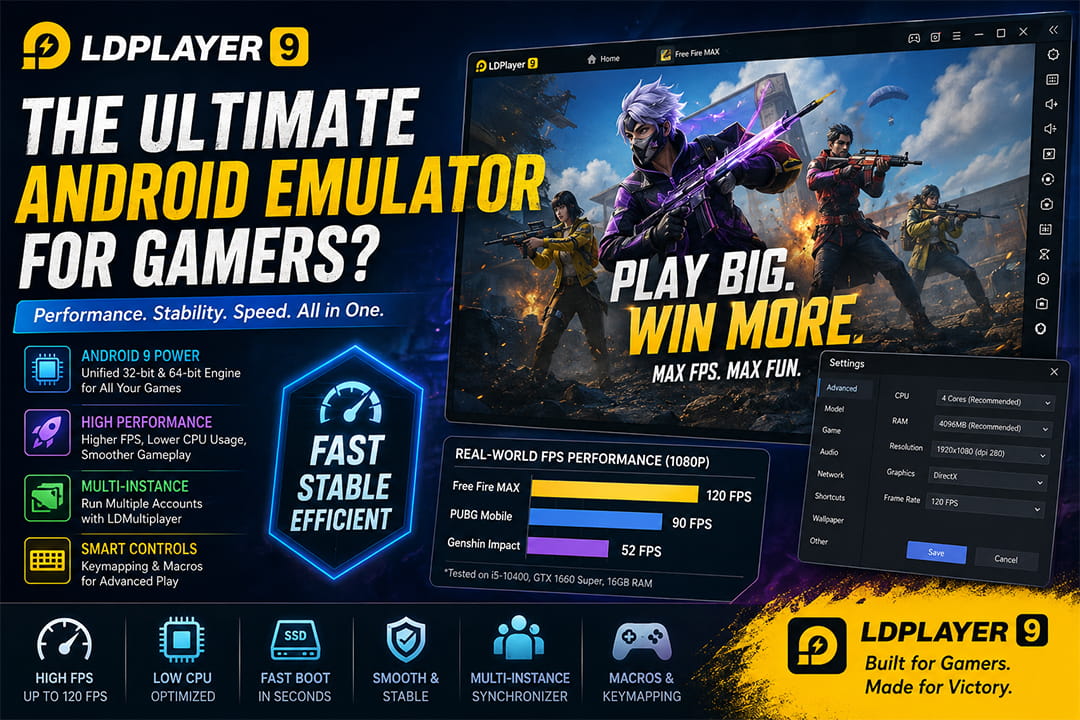
Benchmarks alone do not show how an emulator performs during actual gameplay. To test real performance, gaming sessions were performed using a mid-range system: an Intel i5-10400, GTX 1660 Super, and 16 GB of RAM.
Real-World FPS Stability Metrics (1080p Testing)
-
Genshin Impact (Medium-High Settings): 52 FPS Average (Drops to 44 FPS during heavy elemental bursts in Liyue Harbor).
-
PUBG Mobile (Smooth/Extreme Graphic Profile): 88 FPS Average (Consistent frame pacing with minor 3 frame drops during hot-drops).
-
Free Fire MAX (High FPS Mode Enabled): 118 FPS Average (Virtually locked frame rate output, fluid camera panning).
Free Fire MAX
Target Setting: 120 FPS at 1080p
Free Fire MAX performs very well on LDPlayer 9. Frame rates stay close to the target most of the time. During heavy combat situations, occasional drops to around 108–112 FPS can occur. However, these drops are short and rarely affect gameplay. Frame pacing remains smooth, which makes movement and aiming feel responsive.
PUBG Mobile
Target Setting: 90 FPS using Smooth Graphics
After selecting the correct device profile inside the emulator, the 90 FPS option becomes available in the game’s settings. Performance remains stable throughout most matches. Average frame rates stay close to 86–90 FPS. Fast vehicle movement and crowded areas show fewer micro-stutters compared to many competing emulators.
Genshin Impact
Target Setting: 60 FPS with Medium to High Graphics
Genshin Impact is one of the most demanding mobile games available today. It places heavy pressure on both the emulator and the computer hardware. LDPlayer 9 generally delivers between 50 and 55 FPS during exploration. Larger cities with many characters may cause small loading pauses while assets load in the background. Even so, gameplay remains smooth enough for most players, and crashes are uncommon.
How to Optimize LDPlayer 9 for Maximum Performance
Proper settings can make a big difference. The following steps help unlock the best possible performance.
Step 1: Enable Virtualization
-
Restart the computer and enter the BIOS settings (typically by tapping Delete, F2, or F12 during startup).
-
Locate the CPU settings section.
-
For Intel systems: Enable Intel Virtualization Technology (VT-x). For AMD systems: Enable SVM Mode.
-
Save the settings and restart Windows.
Step 2: Configure CPU and RAM
-
Open the emulator settings menu and select the Advanced tab.
-
Set the allocations according to your hardware footprint:
-
CPU: 4 Cores (Avoid assigning all available CPU cores to the emulator. Windows also needs resources to run smoothly).
-
RAM: 4096 MB for normal gaming workloads.
-
RAM: 8192 MB for demanding titles like Genshin Impact.
-
+----------------------------------------------------+
| Settings                                           |
|  [Advanced]  ->  CPU:    [ 4 Cores ]               |
|  [Model]         RAM:    [ 4096MB ]                |
|  [Game]          Resolution: [1920x1080]           |
+----------------------------------------------------+
Step 3: Enable High Frame Rate Mode
-
Open the Model section.
-
Choose a high-performance device profile designed to bypass default 60Hz limits, such as the ROG Phone 2 or specified 120Hz/240Hz manufacturer models.
-
Next, navigate to the Game Settings tab.
-
Check Enable High Frame Rate Mode and select your preferred FPS limit (90 FPS or 120 FPS).
-
Save changes and restart the emulator.
Advanced Features
Gaming performance is only one part of the experience. LDPlayer 9 also includes useful tools for advanced users.
LDMultiplayer
LDMultiplayer allows users to create and run multiple Android instances at the same time. This feature is especially useful for:
-
Gacha game rerolling
-
Resource farming
-
Running multiple game accounts
-
Strategy games
+-------------------------------------------------------+
| Master Instance (ID 0) - Main Account                 |
+-------------------------------------------------------+
       │
       ├─► Synchronizer Active ──► Instance 1
       │
       └─► Synchronizer Active ──► Instance 2
The Synchronizer feature copies actions from the main window to all linked instances. For example, a single click on the master instance can be repeated automatically across multiple windows. This saves time during repetitive tasks.
Keymapping and Macros
LDPlayer 9 also includes advanced control customization. Players can assign touchscreen actions to keyboard keys and mouse buttons. Macros allow multiple actions to run with a single key press.
Example Script Configuration:
touch 500 600
wait 50
touch 750 200
This system helps create faster control setups for shooters, action games, and strategy titles.
Troubleshooting Common Problems
Even with proper settings, some users may encounter issues. The following solutions address the most common problems using verified system configuration paths.
Emulator Stops at 94%
-
Possible Causes: Graphics driver out-of-date, corrupted instance cache, or Hyper-V structural conflicts interfering with the engine kernel execution.
-
Solutions:
-
Update to the latest official NVIDIA or AMD graphics drivers.
-
Open the Windows Control Panel, go to Turn Windows features on or off, and uncheck Hyper-V, Virtual Machine Platform, and Windows Sandbox.
-
Right-click the LDPlayer 9 desktop shortcut and select Run as Administrator.
-
Audio Stuttering and FPS Drops
-
Possible Causes: Windows audio device sample rate mismatch causing synchronization lag between audio threads and engine rendering steps.
-
Solutions: Open Sound Settings in Windows. Select your active audio device, click Properties -> Advanced, and set the default format to 24-bit, 48000 Hz (Studio Quality). Additionally, enter the LDPlayer Game Settings panel and turn off V-Sync to eliminate framerate capping conflicts.
Game Crashes and Graphics Problems
-
Possible Causes: ASTC Texture format rendering issues or app-specific cache corruption.
-
Solutions: Because LDPlayer 9 runs entirely on an optimized OpenGL/Vulkan framework, graphics processing problems should be handled by clearing texture rendering conflicts. Navigate to Settings -> Advanced, locate the ASTC Texture configuration option, and toggle it off (or switch between hardware/software decoding depending on your GPU profile). If errors persist, clear the specific application cache inside the Android system settings.
Final Thoughts on This
LDPlayer 9 delivers strong performance for Android gaming on Windows PCs. Its Android 9-based unified engine removes the need for separate 32-bit and 64-bit environments while improving memory management and system efficiency.
Gaming performance remains stable across popular titles such as Free Fire MAX, PUBG Mobile, and Genshin Impact. Frame rates stay consistent, loading times are fast, and resource usage remains lower than many users might expect.
The emulator also includes useful tools such as LDMultiplayer, synchronization features, macro support, and advanced keymapping. These additions make it attractive for both casual players and advanced users.
Some competing emulators may achieve higher scores in certain benchmark tests. However, real gaming performance often matters more than benchmark numbers. In daily use, LDPlayer 9 focuses on stability, smooth gameplay, and efficient resource management. For users looking for a reliable Android gaming emulator that works well on both mid-range and powerful systems, LDPlayer 9 remains one of the strongest options available today.